How do I view my testing history?
If you have data storage enabled, you will be able to view your previous testing history. To view those tests, please follow the steps below.
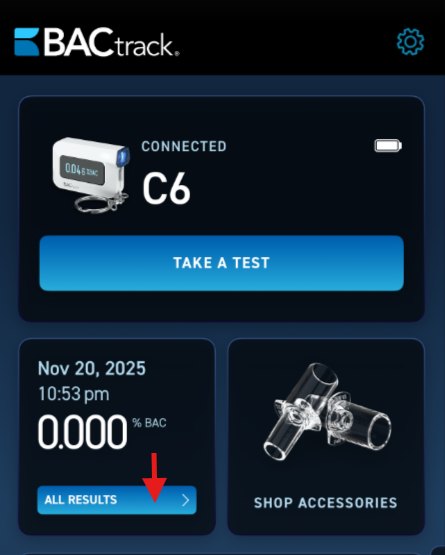
- Navigate to the home screen of the BACtrack consumer app. There, you will see your most recent test result along with a blue All Results button. Tap All Results to continue.
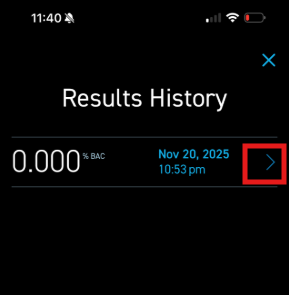
- You will then see the Results History screen. This will display all of your test results from when you had data storage enabled. To view more details of a test taken, click the blue arrow to the right of the result you wish to review.
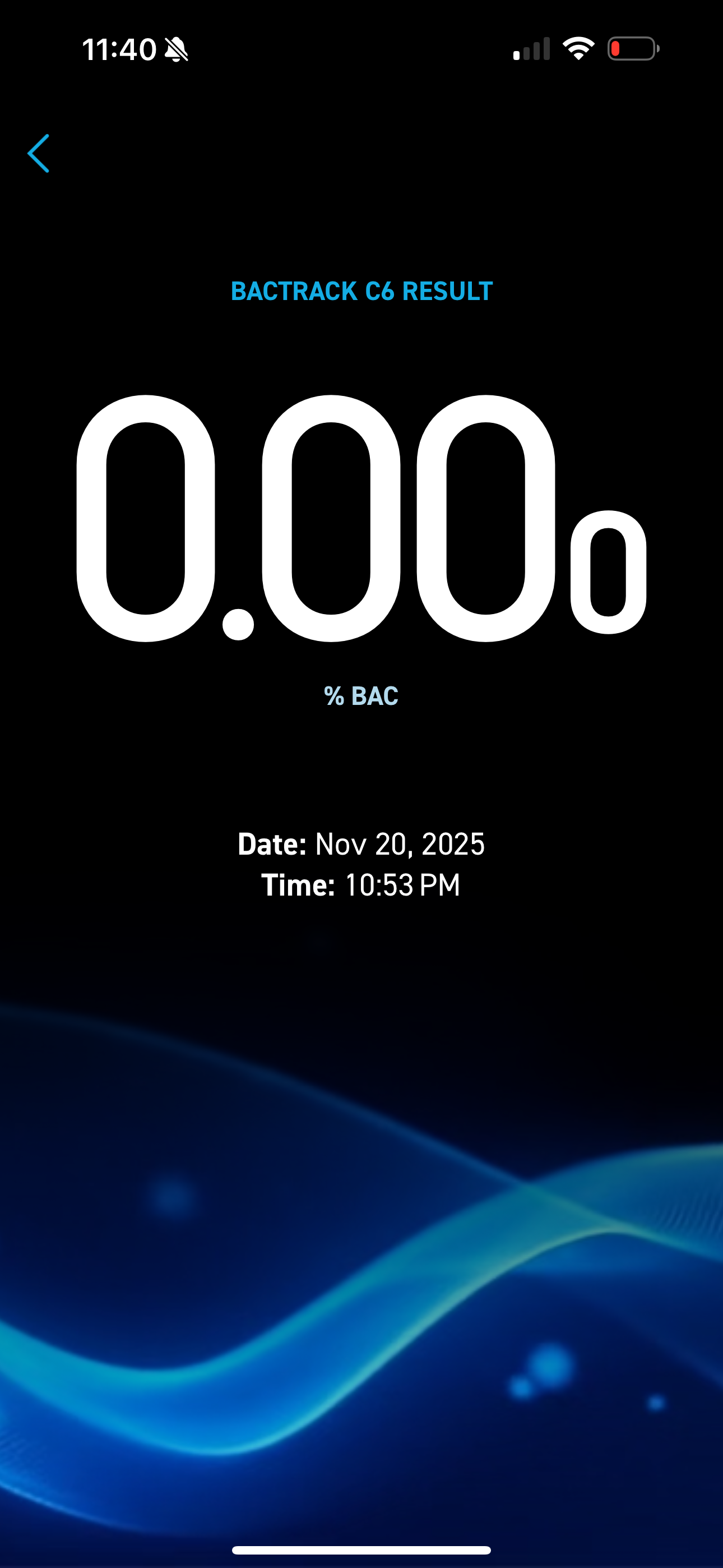
- On the next screen you will be able to see the following:
* Device used. BACtrack C6 in this example.
* Result. 0.000 in this example.
* Date and Time of the test. Nov 20, 2025 at 10:53 PM in this example.