How do I take a test with the consumer app?
Taking a test with the BACtrack consumer app is simple and intuitive. For more information about which devices are compatible with the app, please refer to the link below. Which BACtrack breathalyzers can I use with the BACtrack consumer app?
To take a test, please follow the steps below.
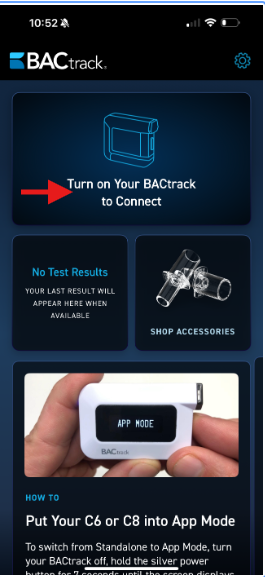
- Once you log in you will see the home screen as shown below. If you do not have a device already connect, ss noted on the screen, please turn on the breathalyzer you wish to use to test.
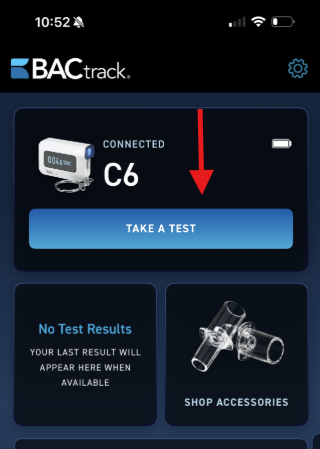
- Once your device connects, you will see it appear at the top of your app. To start a test, click the blue TAKE A TEST button.
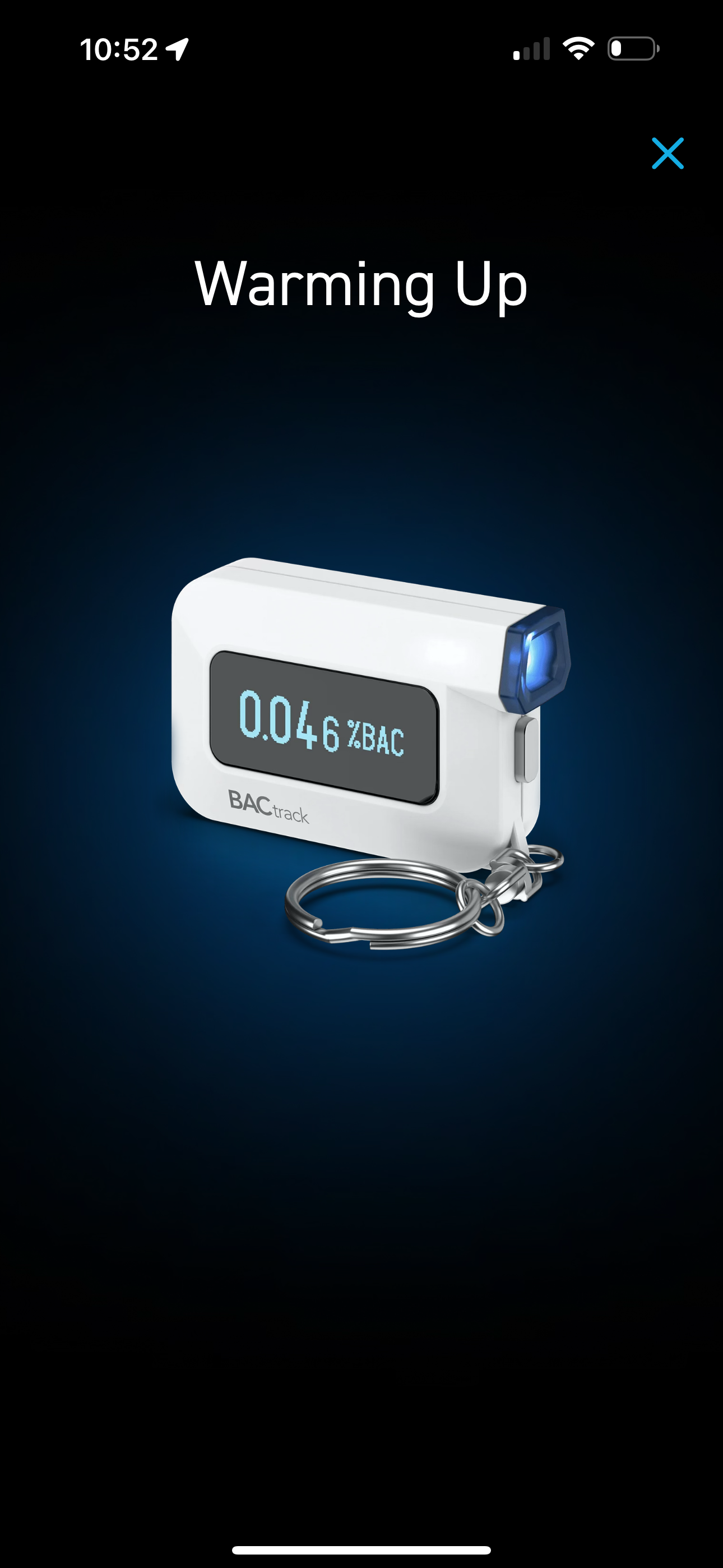
- Next you will see the Warming Up screen. This lets you know the device is warming up to get ready to use.
- Next, you will see Take a Deep Breath. This ensures you have enough air to blow continuously and consistently into the device. Take a deep breath as stated.
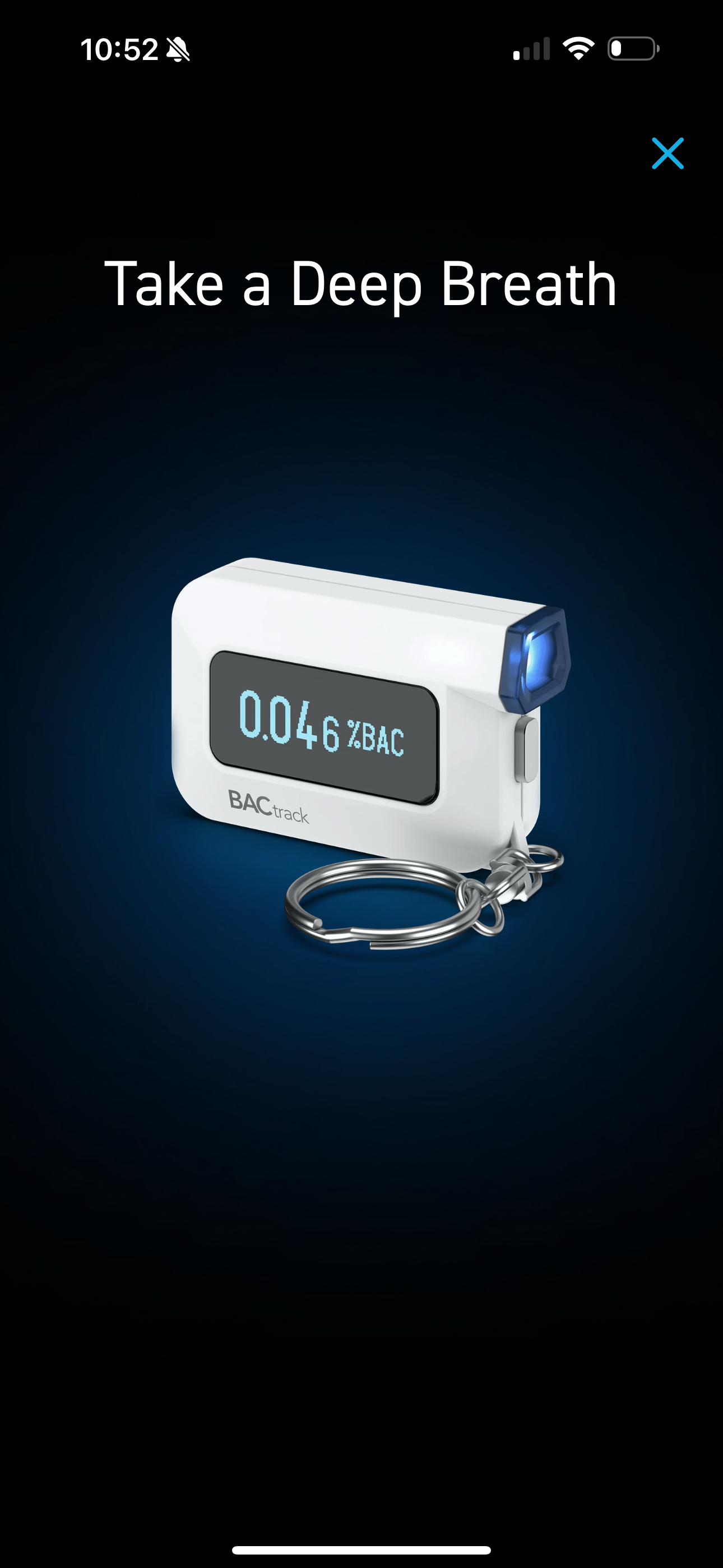
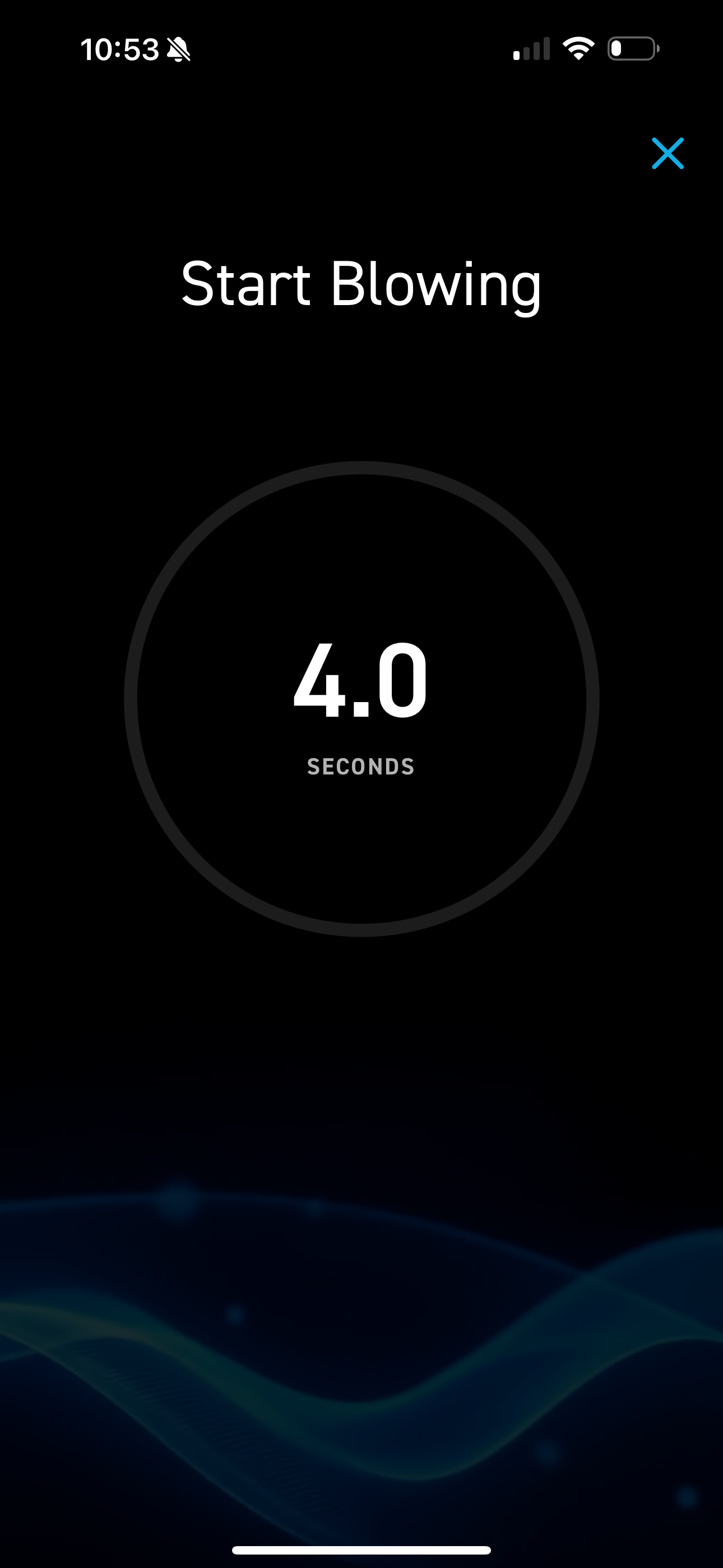
- Next, you will see the Start Blowing screen. Blow steadily and consistently into the device. There is no need to blow as hard as possible—just maintain a smooth, steady breath until the test is complete.
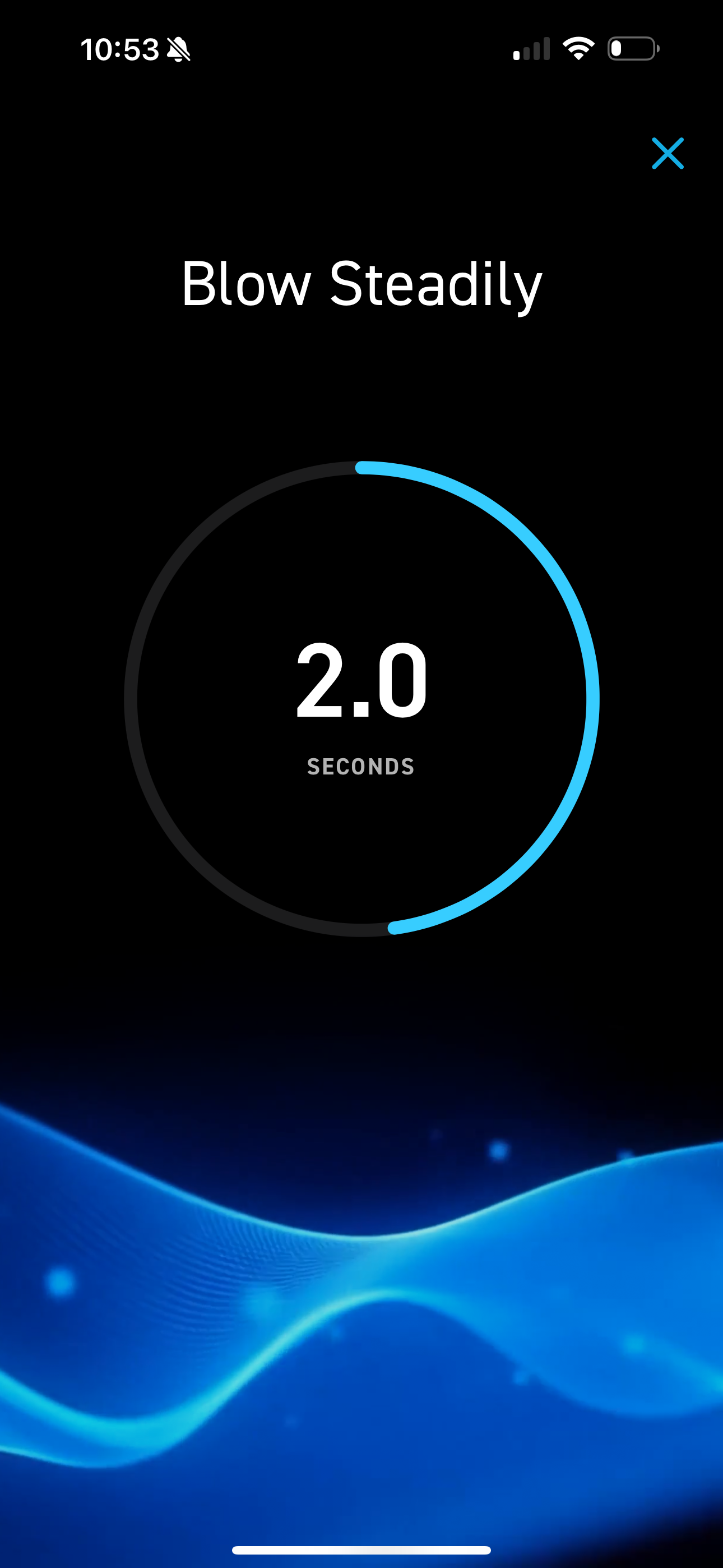
- The screen will display Blow Steadily, and you will see the circle fill with blue as you continue blowing and the test progresses.
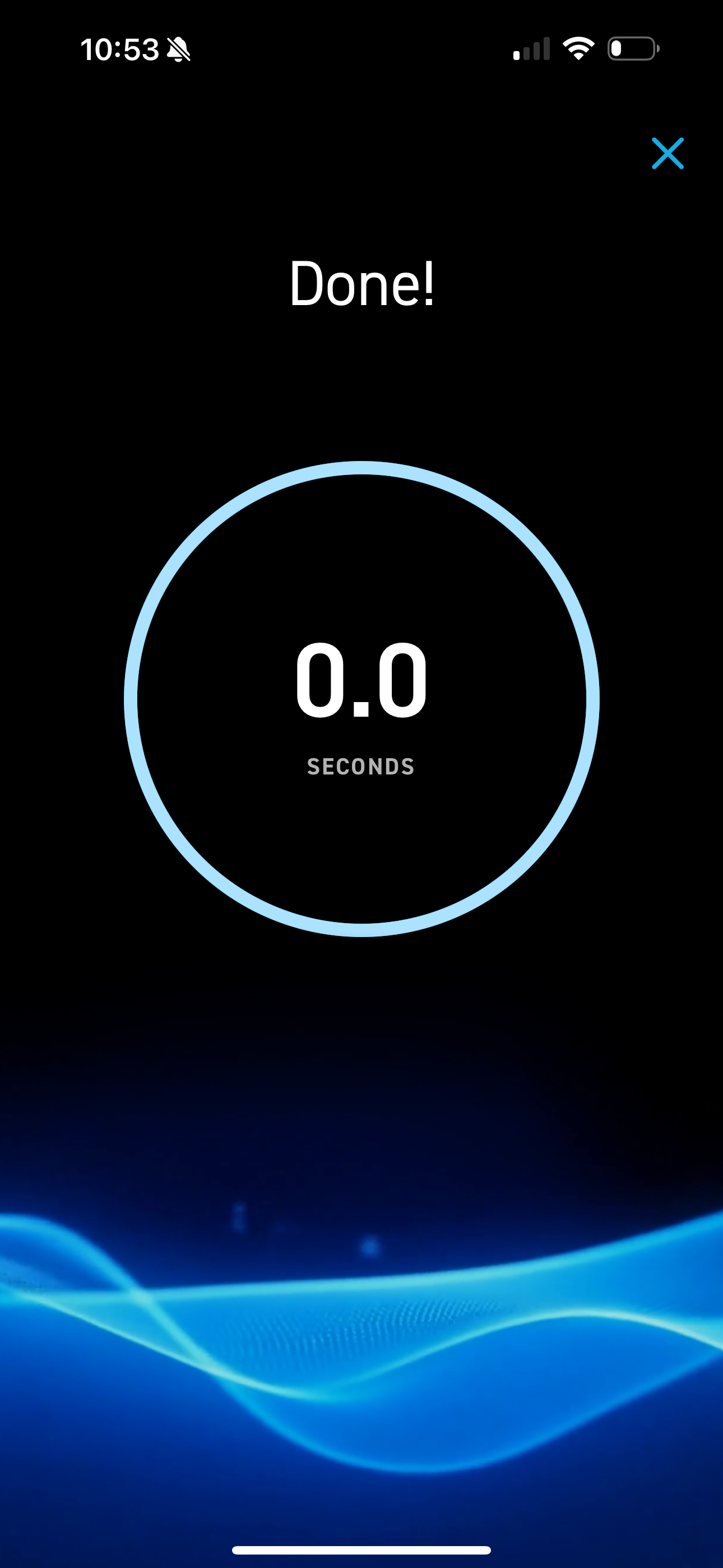
- Once the test is complete, you will see the Done! screen as shown below.
- A loading bar will appear as it analyzes your result to provide the reading.

- You will then see your result as well as a chance to rate the app. We would love to hear from you!
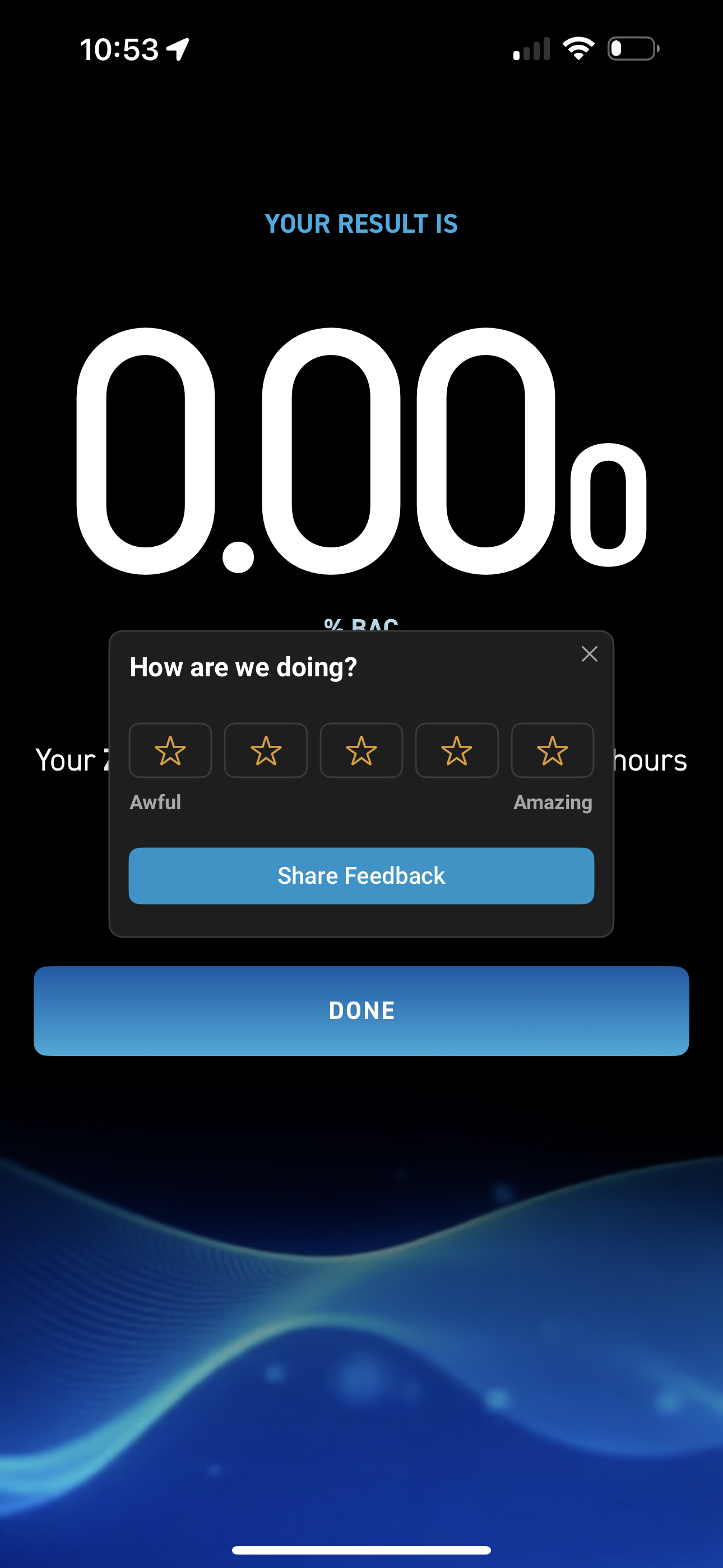
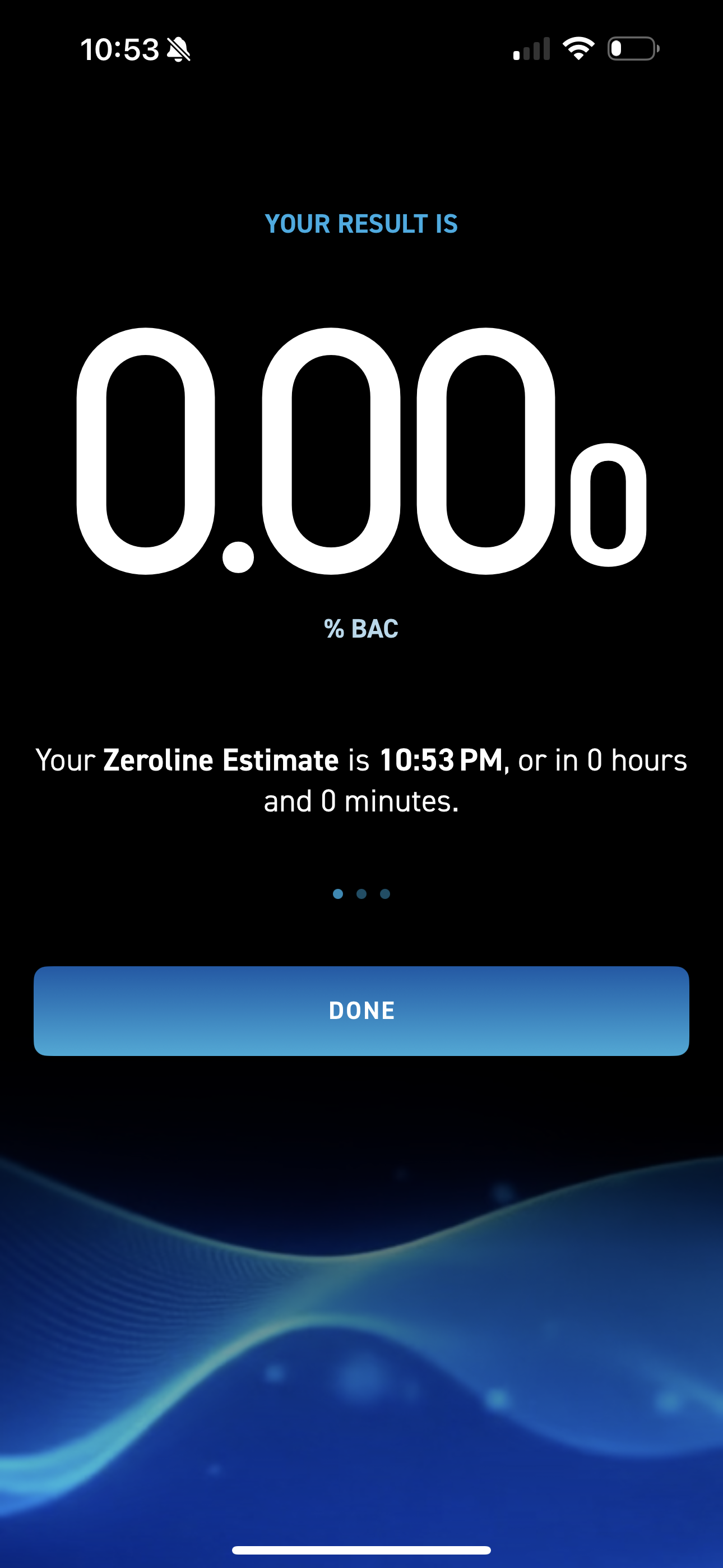
- On this screen, you will see your test result along with your Zeroline estimate, which provides an estimated time until you are sober. Please note that this is only an estimate, as many factors can influence how long it takes for alcohol to leave your system.
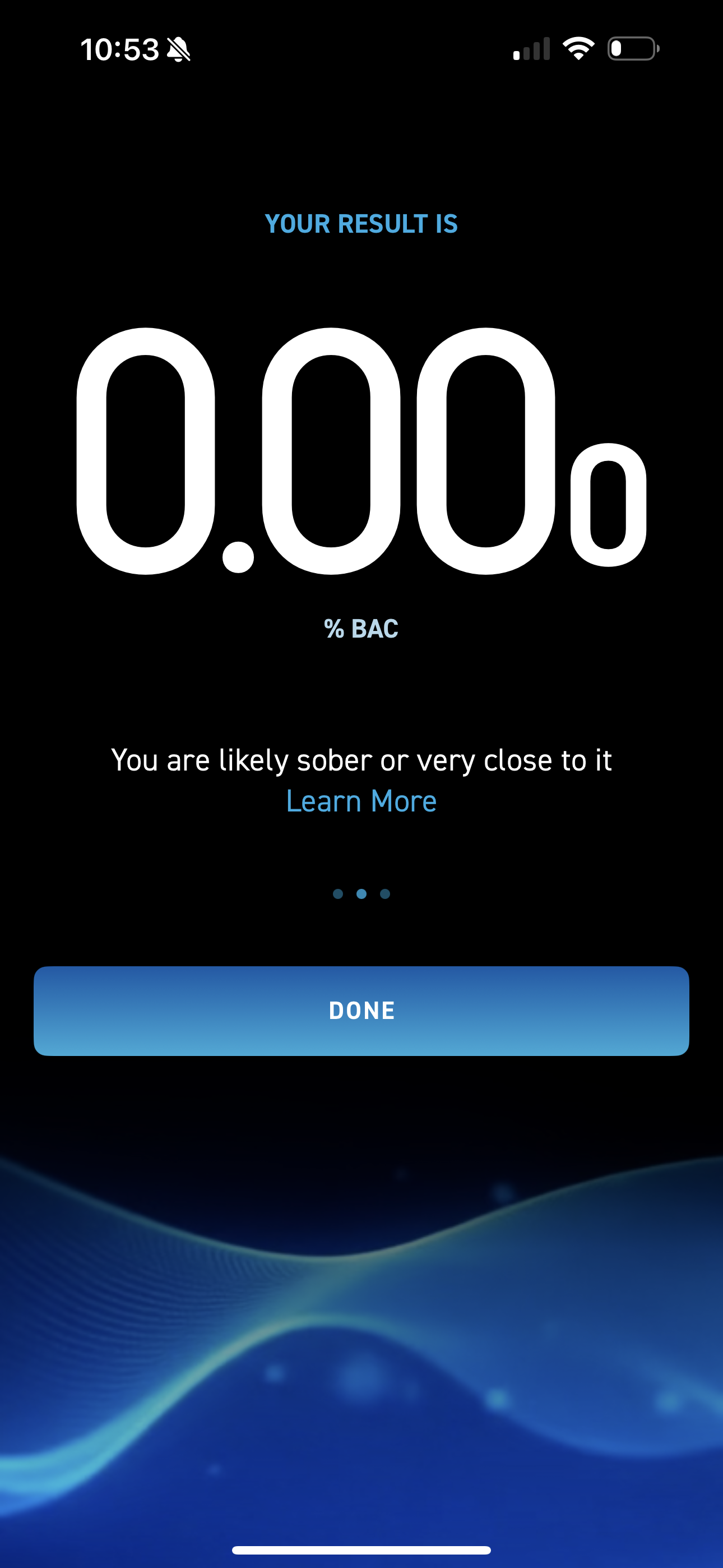
- If you scroll just above the 3 dots, you will be able to see a description of the stated intoxication level. You can learn more about the DOSE SPECIFIC EFFECTS OF ALCOHOL here.
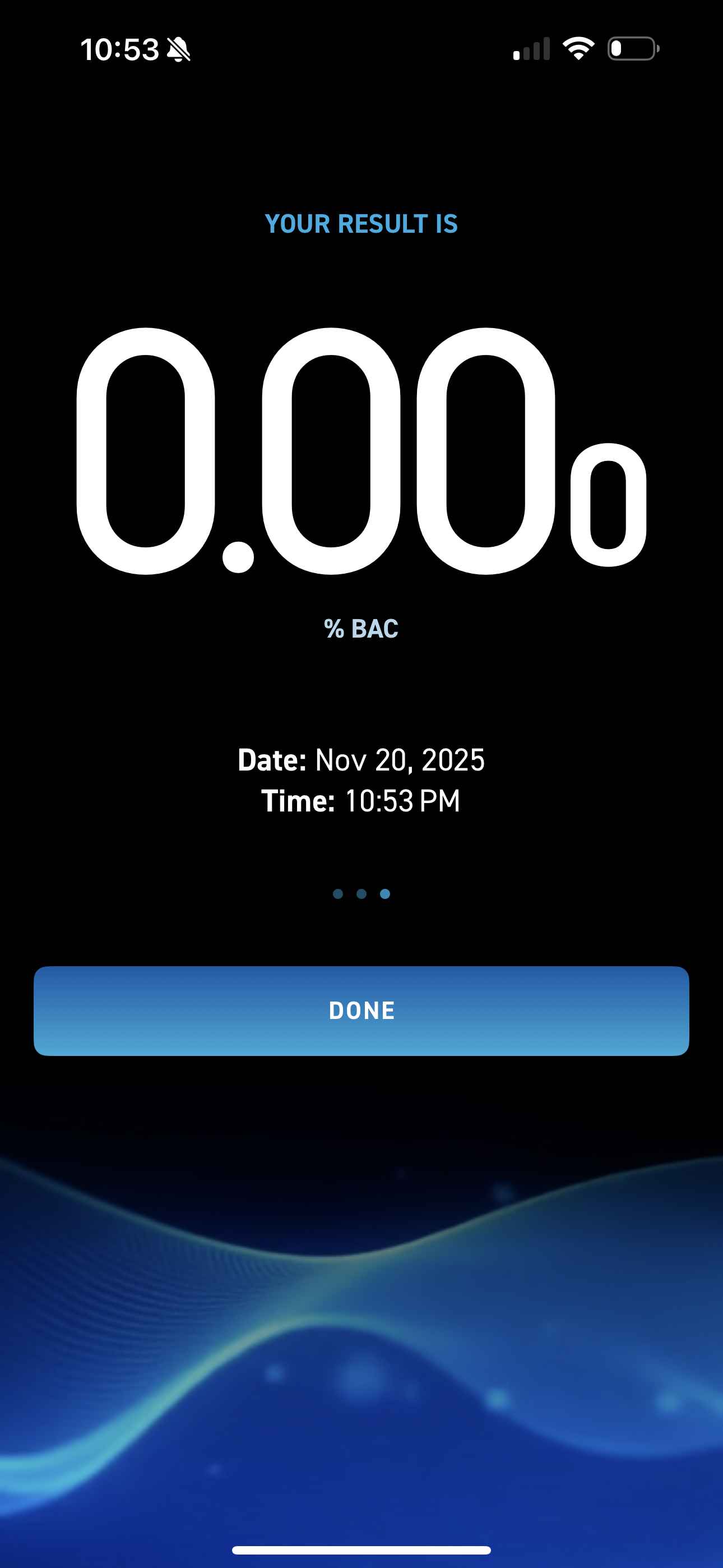
- If you scroll once more, you will see the date and time of the test taken. Click the blue DONE button once you are finished.
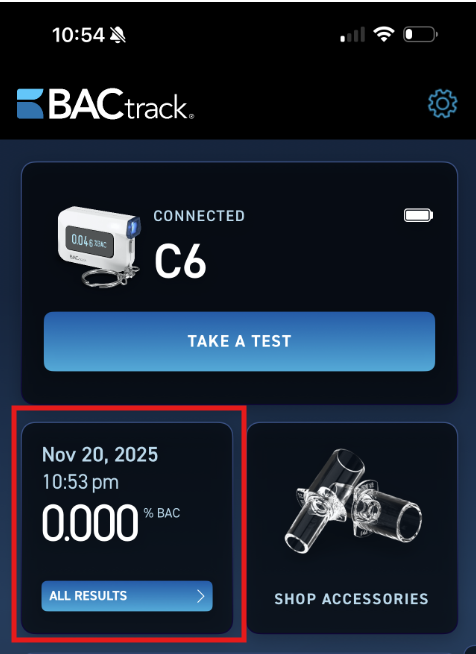
- You will then be taken back to the home screen. Your most recent test result will show as noted below and you can view additional test history there as well.