How do I change settings in the app?
Below are the steps to access and change settings in the BACtrack consumer app.
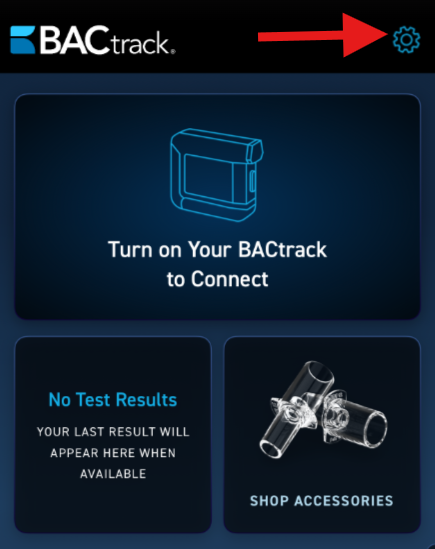
- To access Settings, once you log in, click the gear icon at the top right corner of the app.
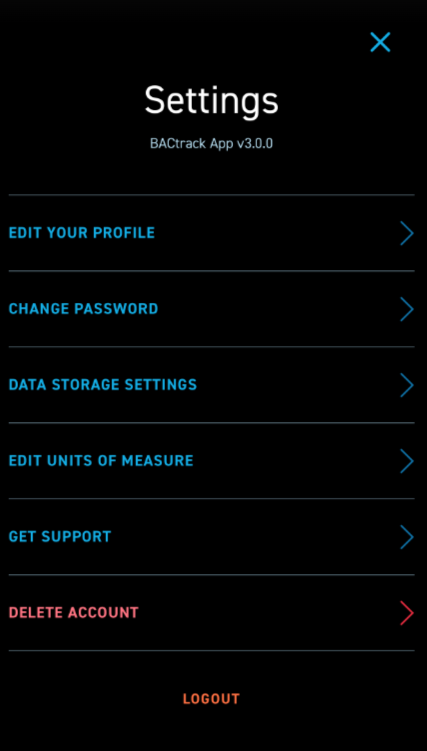
- On this screen, you will see all of the available Settings options. Please continue reading this help article for detailed information about each setting.
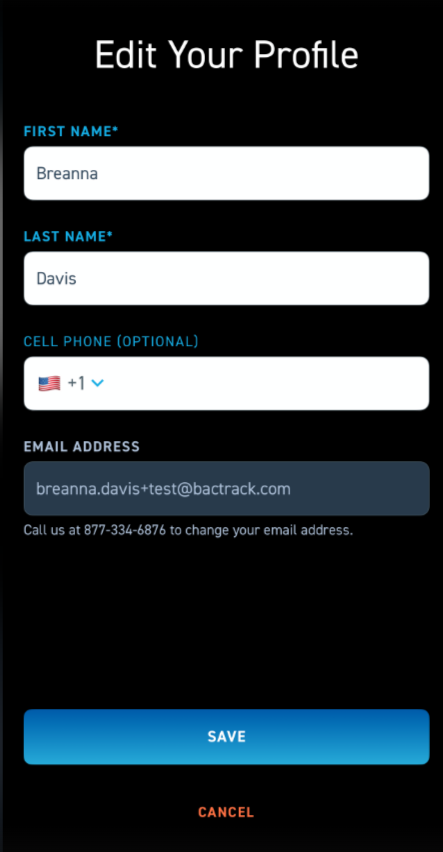
- The first setting is EDIT YOUR PROFILE. Here you will be able to edit your FIRST NAME, LAST NAME, AND CELL PHONE. If you wish to update your EMAIL ADDRESS, please contact our support team at the number listed on the screen and our representatives will be happy to help you.

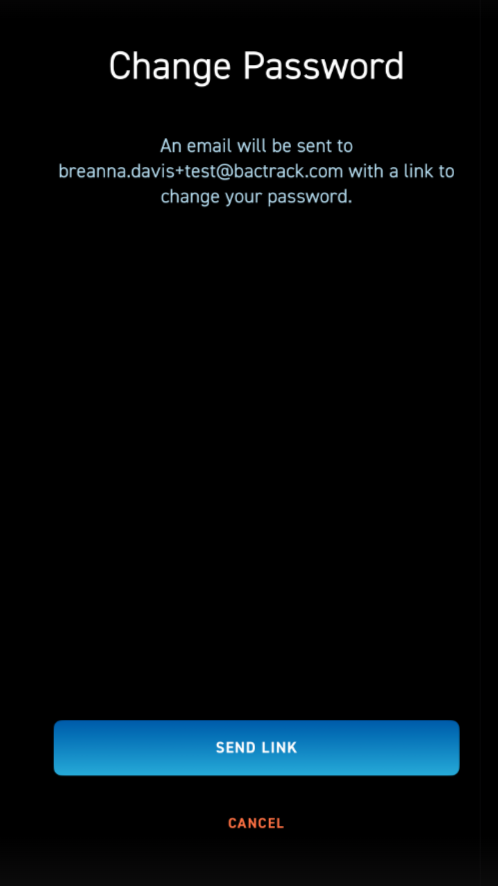
- The next setting option is CHANGE PASSWORD. As noted on the screen, you will click the blue SEND LINK button at the bottom and we will email you a link to reset your password. If you entered this screen in error, you can click CANCEL to exit and go back to the settings menu.

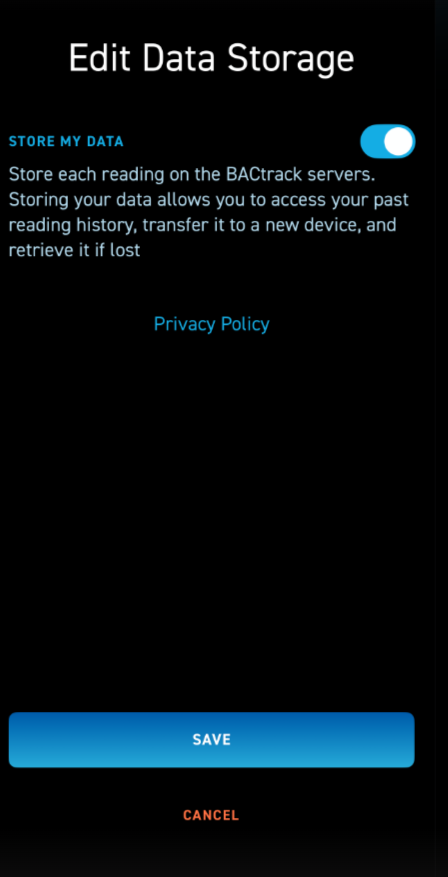
- The next setting option is DATA STORAGE SETTINGS. Here you can enable or disable the feature to store your data. Storing your data allows you to access your past reading history, transfer it to a new device, and retrieve it if lost. Once you change the setting, you can click the blue SAVE button at the bottom.
*Please note that if you disable data storage, your prior history will still remain but any tests taken while this setting is disabled will not be stored.

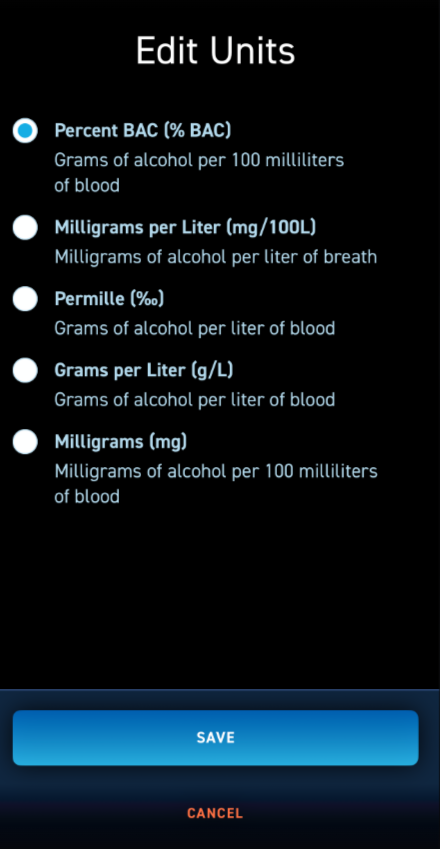
- The next setting option is EDIT UNITS OF MEASURE. Different regions around the world use different units to measure alcohol concentration. To ensure BACtrack works seamlessly no matter where you are, the app allows you to choose from several measurement units. On this screen, you can select the unit that matches the standard used in your country or personal preference. Once selected, your test results will be displayed using that measurement format. The default in the U.S. is Percent BAC (% BAC). Once you select the correct unit of measurement, click the blue SAVE button at the bottom.

- The next option in settings is GET SUPPORT. This will take you directly to our BACtrack support site. You can search for a specific topic or simply read through whatever interests you.

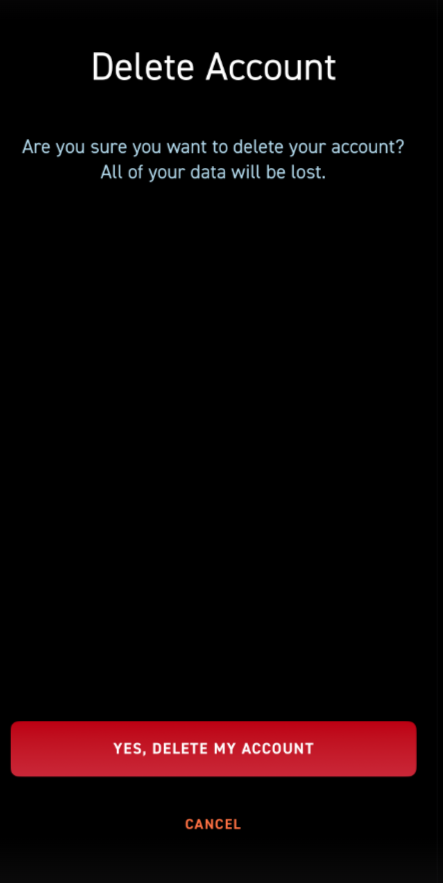
- The next option in settings is DELETE ACCOUNT. Please note that selecting YES at the bottom of this screen will delete all of your account data. If that is what you would like to do, click the YES, DELETE MY ACCOUNT red button. Your account and data will be removed.

- The last option in settings is LOGOUT. This will log you out of your account in the app. You will need to log back in to access your account.